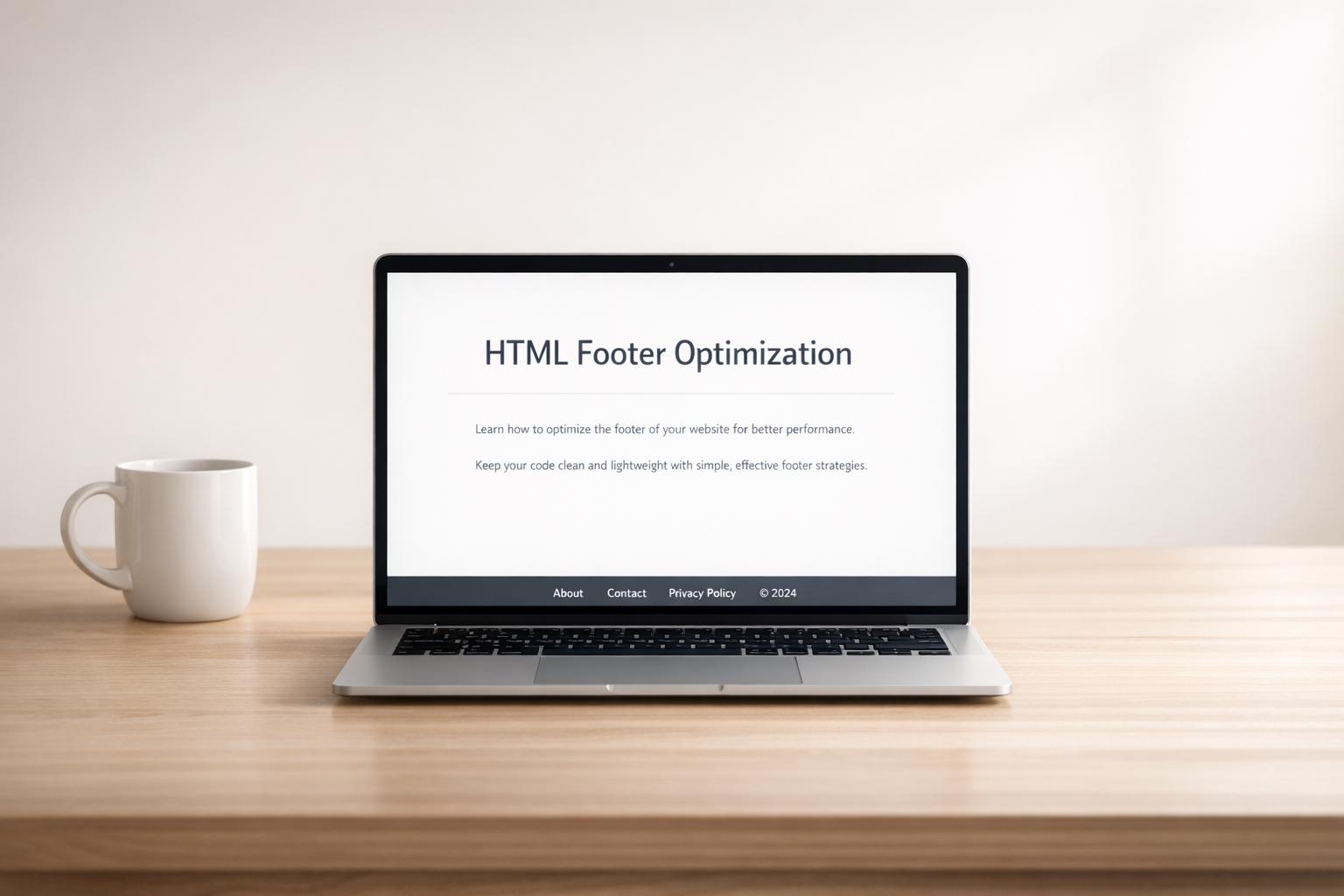
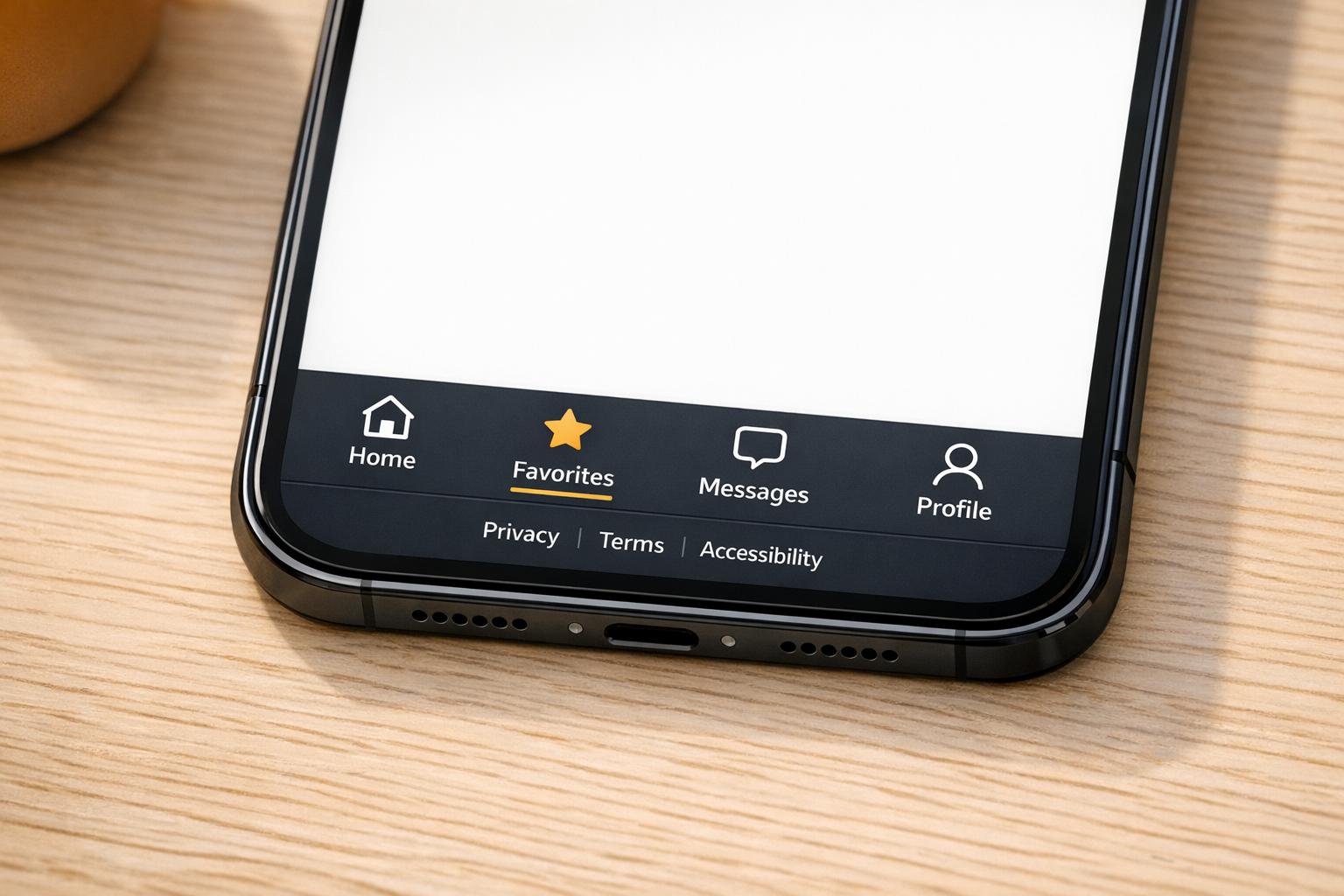
Footer Compliance Checklist for Multi-Domain Websites
Ensure legal links, accessible structure, accurate company details, and a centralized update process for multi-domain footers.
If you run more than one website, your footer can turn into a legal problem fast. I’d check four things first: required legal links, link order and accessibility, company details, and a single update process across every domain.
Here’s the short version:
Every domain needs the right legal links: privacy policy, terms, cookie options, and any local notices that apply
Footers should stay consistent: same core links, same order, clear labels, and standard HTML links
Company details must match each domain: legal entity name, address, contact email, and current 2026 copyright year
Updates need one control point: without it, footer drift spreads across sites and errors pile up
A missed footer detail can lead to broken policy links, the wrong company name, or missing state notices. For teams with regional sites, campaign domains, or subdomains, that adds extra review work every time a policy, brand, or contact detail changes.
Customize Global Headers and Footers Across Multiple WordPress Sites
Quick comparison
Area to review | What I’d check | Common issue |
|---|---|---|
Legal links | Privacy Policy, Terms, cookie controls, accessibility link | Missing or old links |
Structure | Same link order, crawlable | JavaScript-only links |
Company info | Legal entity, address, email, copyright year | Wrong owner or stale year |
Process | One source for shared footer content and approvals | Different teams changing footers by hand |
If I were reviewing a multi-domain setup today, I’d use this checklist to spot gaps early and keep footer content aligned across every site.
Checklist Item 1: Required Legal Links and Notices
Check each domain in a multi-domain portfolio for the legal links, notices, and contact details it must show. The exact set depends on the jurisdiction and the industry.
Privacy Policy, Terms, and Cookie Controls
Link to your Privacy Policy and Terms with absolute URLs so the right policy version can be managed across domains. Add cookie controls, or a Cookie Policy, where they're required. If a region calls for it, add an Imprint too.
Once those legal pages are in place, review the footer and make sure it also shows the site's contact and accessibility details.
Accessibility and Contact-Related Disclosures
An Accessibility Statement is often linked from the footer, and contact details should be easy to spot. The footer should also include the legal entity name, company address, contact email, and the current copyright year.
After that, check for disclosures that apply only to certain places or regulated fields.
State-Specific and Regulated-Industry Notices
Add domain-specific notices only where they apply. For example, U.S. state privacy opt-out links, licensing notices, and healthcare disclosures should appear only on the domains covered by those rules.
Use the table below as a footer inventory for each domain. It helps you map every required disclosure to how it appears on that domain.
Disclosure Type | Notes | Display Method |
|---|---|---|
Privacy Policy / Terms | Linked with absolute URLs | Linked |
Cookie Controls / Cookie Policy | Use where tracking is present | Linked or button |
Accessibility Statement | Footer link for accessibility support | Linked |
Legal Entity Name, Company Address, Contact Email, Copyright Year | Core footer details | Displayed |
State Privacy Opt-Out | Add where required by state privacy rules | Linked |
Imprint | Common in European markets | Linked |
Licensing / Financial Notices | Industry disclosures | Displayed or linked |
Healthcare Disclosures | Industry disclosures | Displayed or linked |
Checklist Item 2: Consistency, Accessibility, and Footer Structure
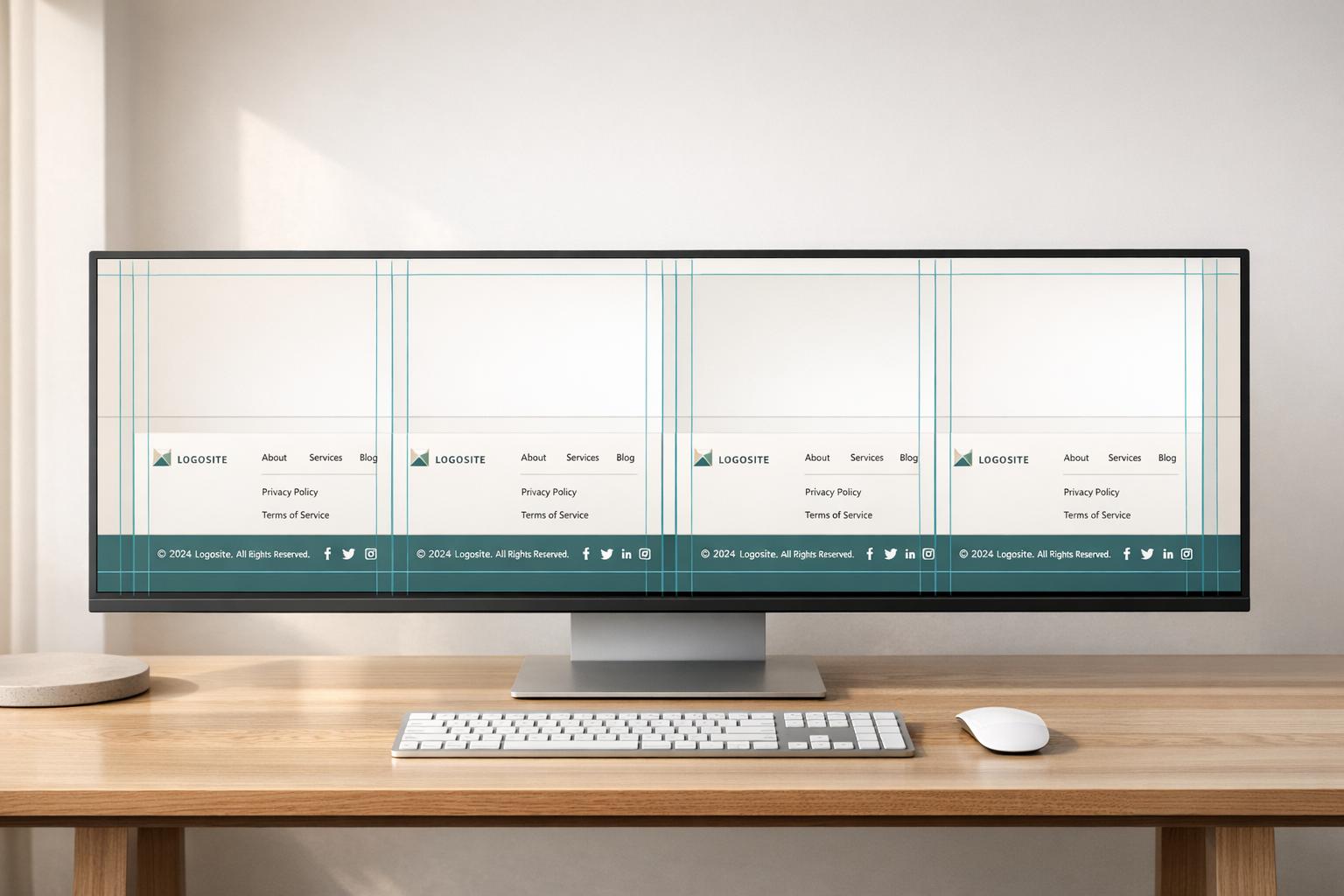
Once the required links are live, check that the shared footer setup matches across every domain. A footer can still create risk when the right links exist, but the layout shifts from one site to another.
Keep Core Footer Links Synchronized Across Domains
Core legal links should appear in the same relative order on every shared domain. Under WCAG 3.2.3, navigation links need to keep the same relative order across pages so users can depend on a predictable layout.
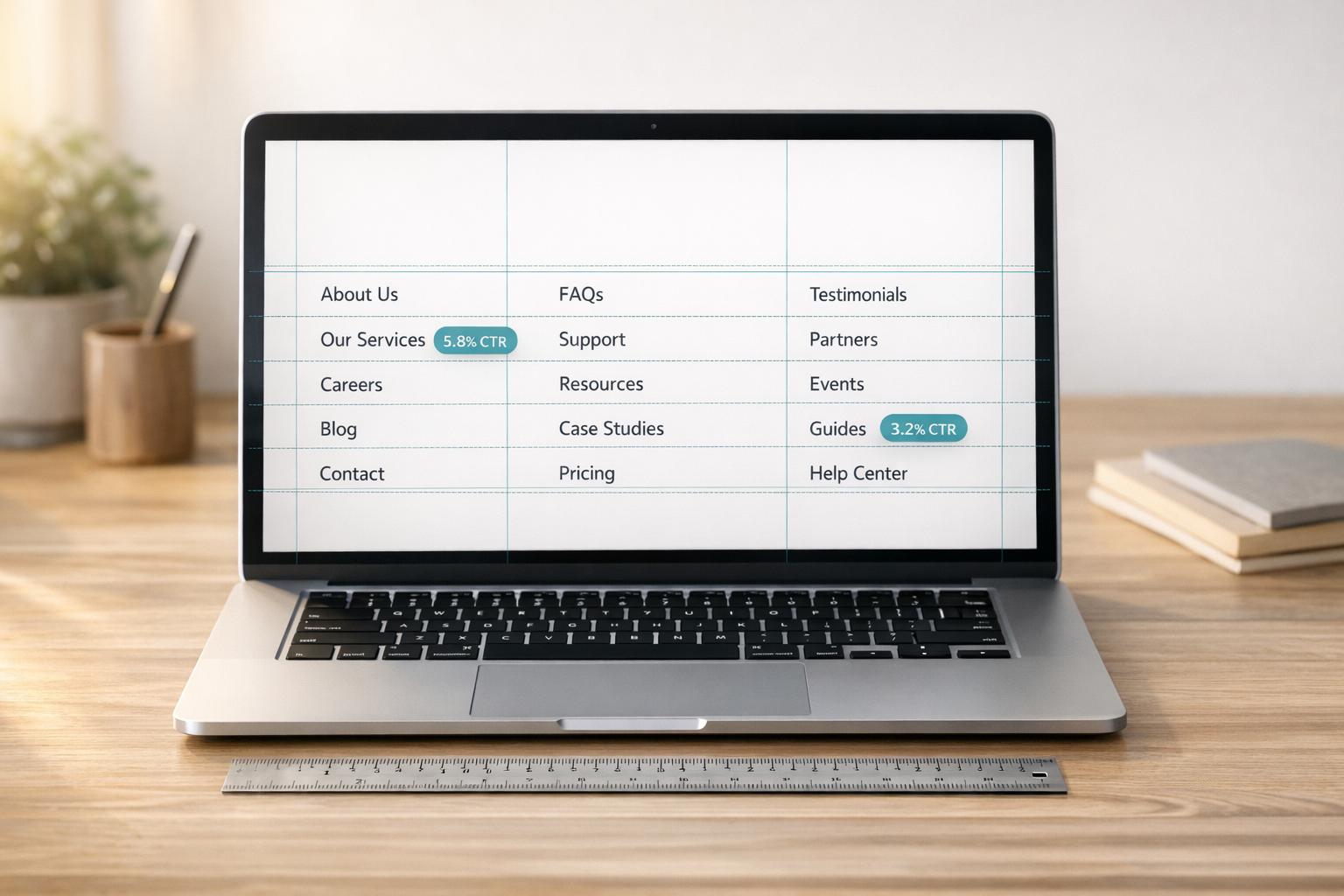
Use a single source of truth to keep shared links aligned across repositories. Domain-specific items can still change, like local support contacts or regional disclosures. The simplest way to handle this is to separate shared links from domain-level overrides. Keep global links fixed, and let only local details change.
Once the link order is set, check the markup that exposes those links to users and crawlers.
Use Clear Labels and Accessible Navigation Patterns
Footer link text should be clear and descriptive. Wrap footer navigation in a <nav> element with aria-label="Footer" so screen readers can find it fast. Use standard <a href> links so required items appear in the initial HTML. Avoid JavaScript-only navigation for footer links.
Link Pattern | Crawlable? | Why |
|---|---|---|
| Yes | Standard anchor with a valid |
| No | Missing |
Non-anchor elements ( | No | Not valid navigation links |
Use View Page Source (Ctrl+U) instead of Inspect Element to confirm footer links are present in the initial HTML. On mobile, make sure footer links have touch targets of at least 44×44 px so people can use them without trouble.
Next, review copyright and ownership details that may differ by domain.
Checklist Item 3: Copyright, Ownership, and Domain-Specific Details
These are the footer fields that tend to drift first after an acquisition, merger, or internal reorg.
Verify Copyright Year and Legal Entity Name
Check that the copyright year is current and that the legal entity name matches the company that actually runs each domain. Use the legal entity that operates the site, not the parent brand, unless both are the same entity. The naming format should stay consistent across the full portfolio.
Footer Field | What to Verify | Risk If Wrong |
|---|---|---|
Copyright Year | Must reflect the current year | Can make the site look poorly maintained; stale trust signal |
Legal Entity Name | Must match active corporate records | Legal compliance risk; brand inconsistency |
Physical Address | Must be specific to the operating legal entity | User confusion; potential regulatory non-compliance |
Check Contact Details, Subsidiaries, and Local Disclosures
Physical addresses, contact emails, and phone numbers should be correct for each domain and for the business unit or location tied to that domain, not a generic corporate placeholder.
Treat contact details and local disclosures as per-domain overrides, not shared defaults. Once those details are correct, lock them into one central update process. The next checklist item covers the workflow used to keep those values in sync.
Checklist Item 4: Centralized Update Workflow and Ongoing Audits

Footer Compliance Workflow for Multi-Domain Websites
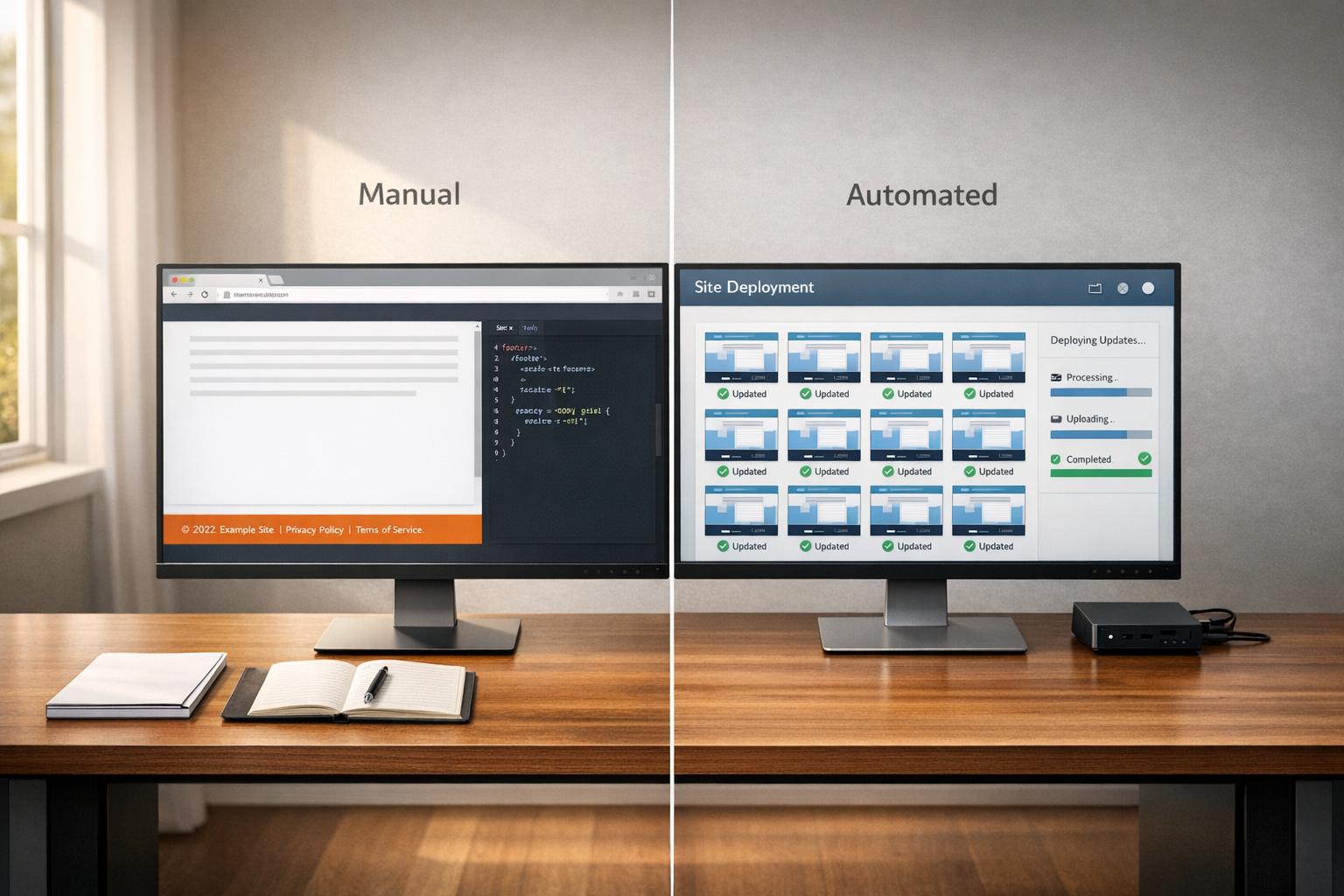
Once the per-domain details from the earlier checklist items are locked in, the next problem is simple: keeping everything correct over time without touching every site by hand after each update.
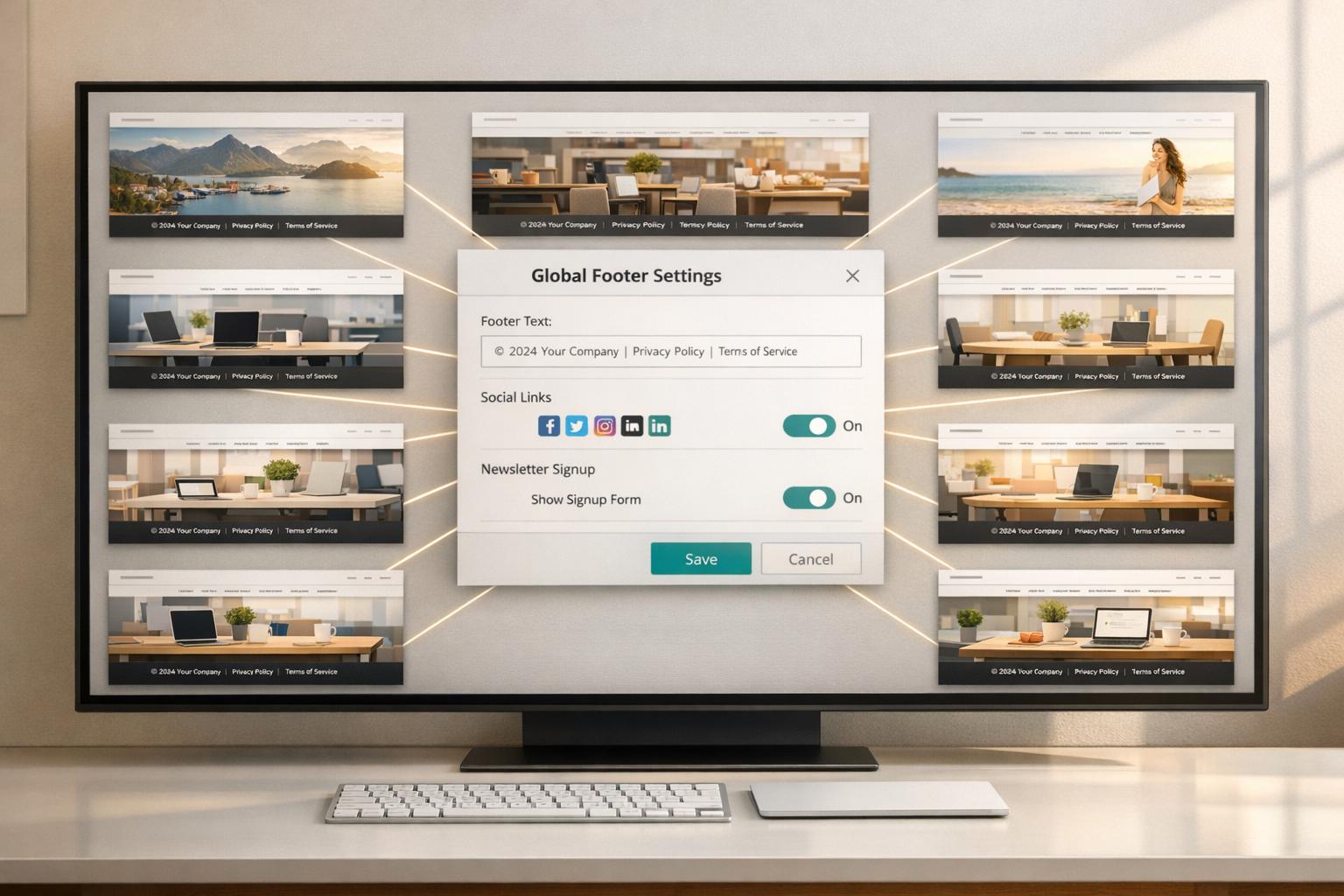
Build a Single Source of Truth for Footer Content
After per-domain exceptions are in place, the main risk is drift.
Keep approved footer blocks in one managed source. That includes legal links, ownership details, and domain-level overrides. It should also support per-domain overrides for local disclosures, state-specific notices, or different social media handles. Brand details like the legal entity name, current copyright year, company address, and contact emails should stay synced there too.
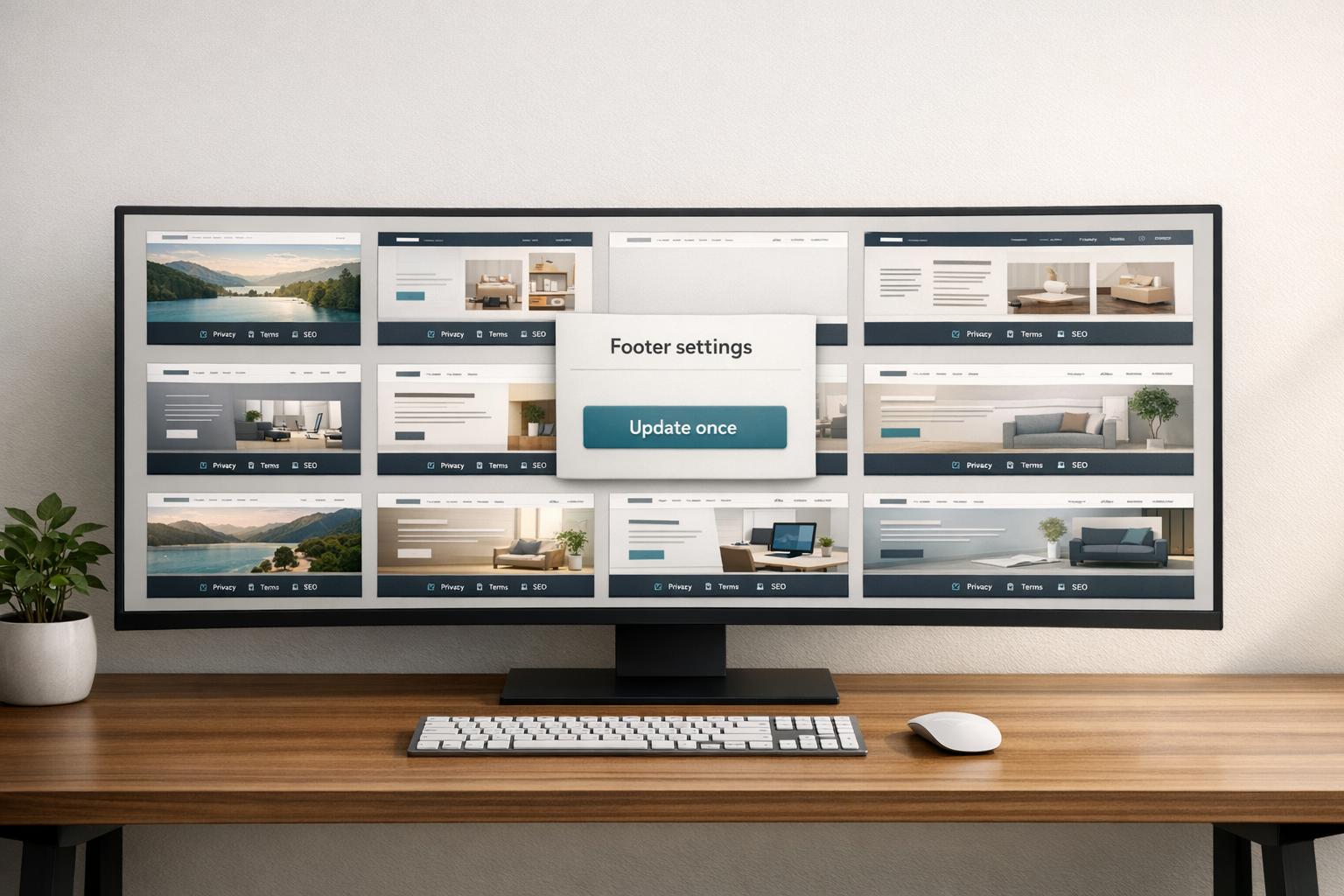
Teams can use 1Footer as a central footer management system to manage approved legal blocks and per-domain overrides from one managed system. Updates should be delivered as crawlable HTML, not iframes or static embeds, so the footer remains part of the rendered response path across every domain.
The table below shows what each footer element does, whether it should be shared or domain-specific, and who should own updates:
Footer Element | Compliance Purpose | Shared or Domain-Specific | Update Owner |
|---|---|---|---|
Privacy Policy / Terms | Legal Compliance | Shared | Legal Team |
Copyright Year & Entity Name | Legal Ownership | Shared | Legal/Finance |
Accessibility Link | WCAG Compliance | Shared | Accessibility Lead |
Cookie Controls | Privacy Compliance | Shared | Legal/Technical Team |
Contact Details | Transparency / Trust | Shared or Domain-Specific | Customer Support/Ops |
State-Specific Notices | Regional Legal Compliance | Domain-Specific | Legal/Compliance |
Product / Service Links | SEO / Navigation | Shared | Product Marketing |
Set Approval, Version Control, and Post-Change Review Steps
Once the footer source is centralized, updates need a controlled release path.
Footer changes should follow a set lifecycle instead of being made ad hoc. The recommended flow is Draft → Review → Publish. Each stage should have a clear owner and a record of who approved the change.
Set owners by content type:
Legal or General Counsel for compliance text
Accessibility Lead for WCAG-related links
Product Marketing for navigation
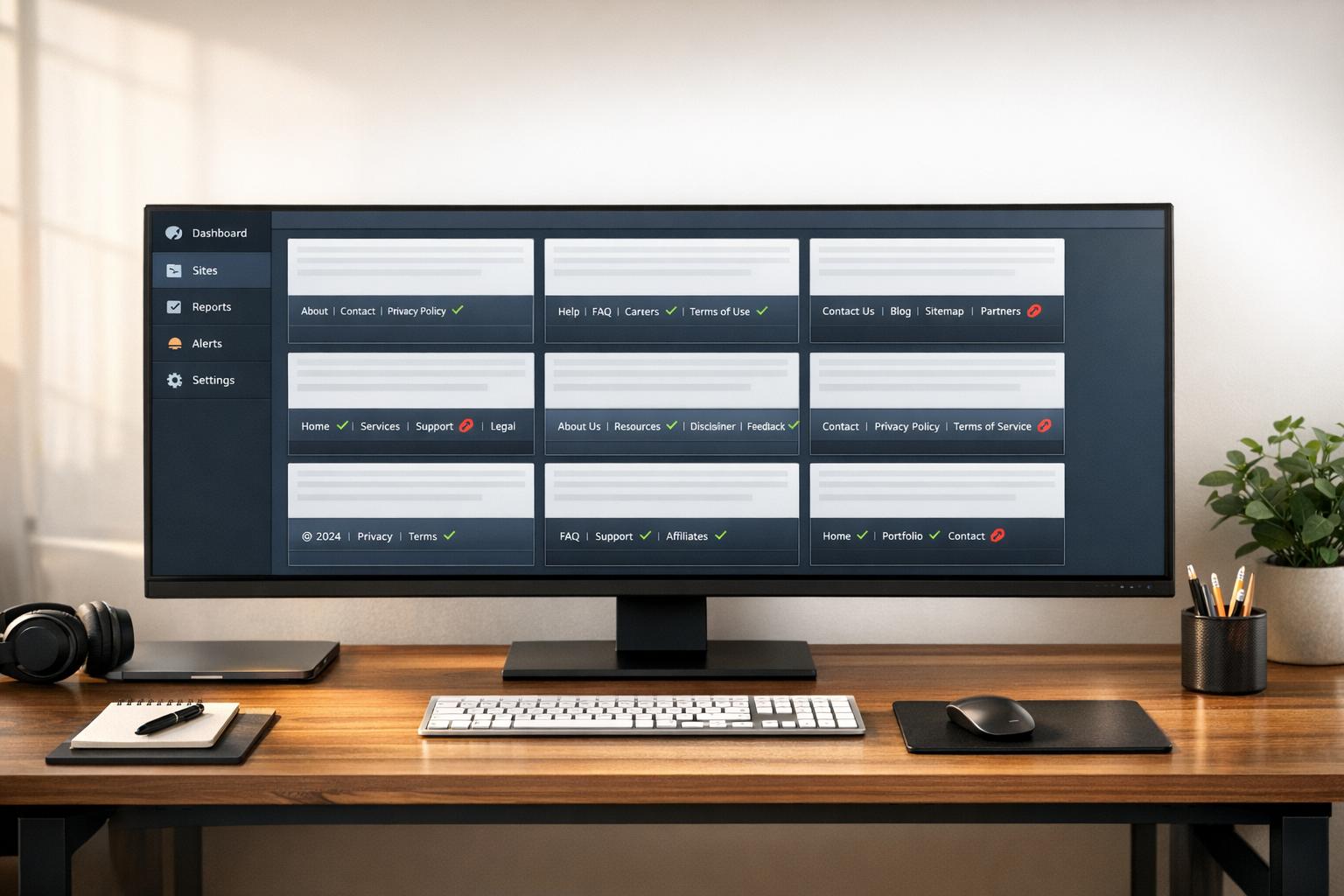
After publishing, check rendering and link access on every affected domain.
Run an audit after a new domain launch, redesign, or policy change. Then review quarterly.
Conclusion: A Footer Compliance Review Process Teams Can Repeat
Use the same process each time: verify legal links, sync shared content, keep accessibility and ownership details current, and audit on a set schedule.
FAQs
Which footer items should vary by domain?
Any domain-specific or audience-specific footer items should change from one site to another. That includes:
brand identity details like the logo or tagline
featured product, company, or social links
navigation or campaign links that fit that domain
Even if the footer uses the same overall structure, policy links and legal disclosures should still be tailored for each domain so they stay accurate and compliant.
How often should I audit footers across all sites?
Conduct a formal footer audit every quarter to keep your site compliant and in good shape.
During each review, check that footer links return the right HTTP status codes, mobile touch targets meet the 44 x 44 pixel minimum, anchor text stays clear and concise, and footer links match your XML sitemap.
What is the safest way to update footers at scale?
The safest way to update footers at scale is to stop making manual, repo-by-repo edits and move to a centralized footer operations layer. With one dashboard, you can manage shared footer sections and push updates across many domains at the same time.
That cuts down on footer drift and the mismatches that happen when teams edit separate codebases by hand. It also keeps legal links and navigation in crawlable, server-side HTML, so you don’t need a new deploy for every site.