Best Practices for Managing Multi-Site Website Footers
Centralize footer updates across multiple sites to protect brand, ensure compliance, and boost SEO.
Your website footer isn't just a design afterthought - it’s a powerhouse for navigation, branding, and compliance. If you're juggling multiple sites, keeping footers consistent and functional can feel overwhelming. Here's what you need to know:
Consistency is key: Decide which footer elements are global (e.g., copyright, privacy policy) and which are local (e.g., regional disclaimers, contact info).
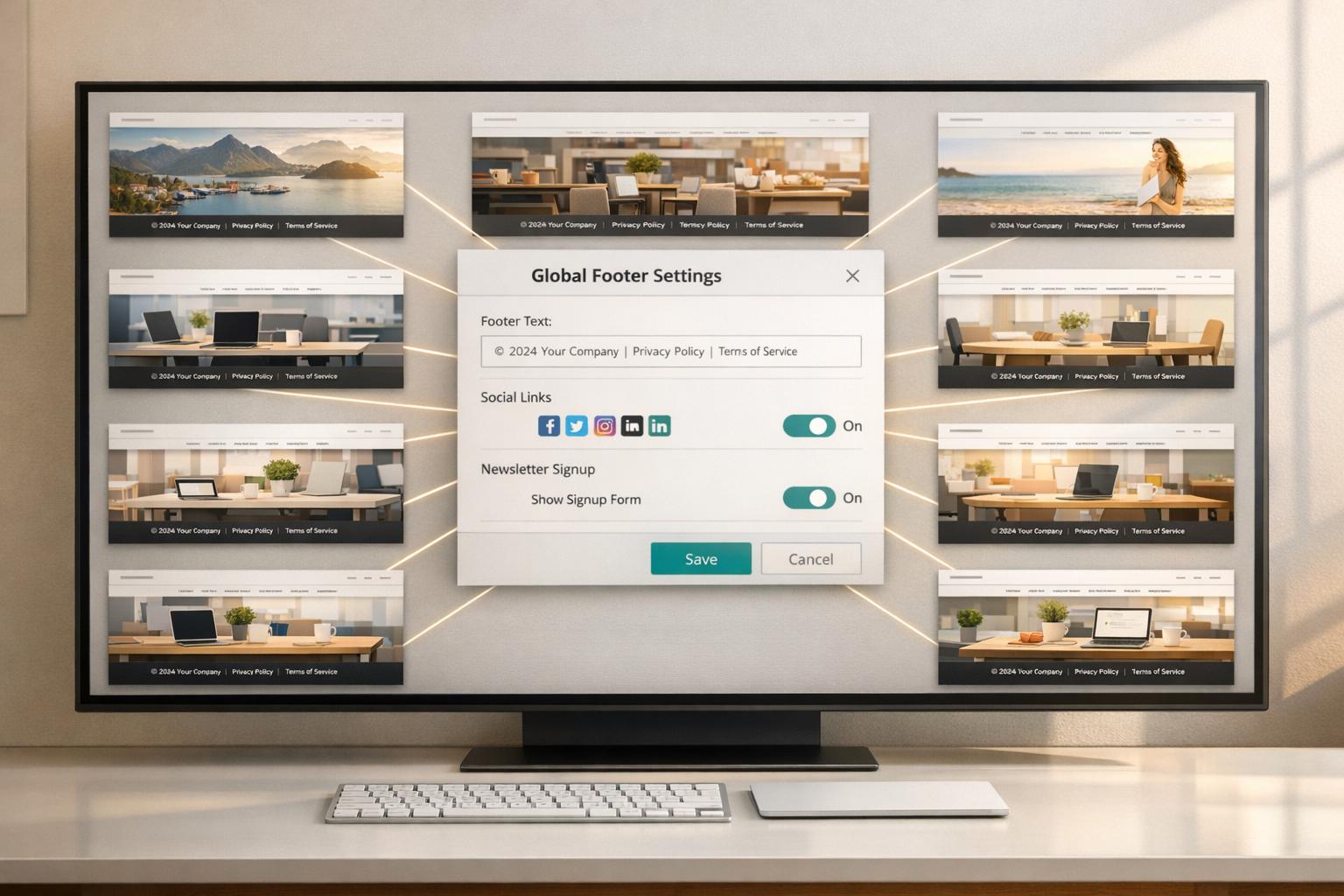
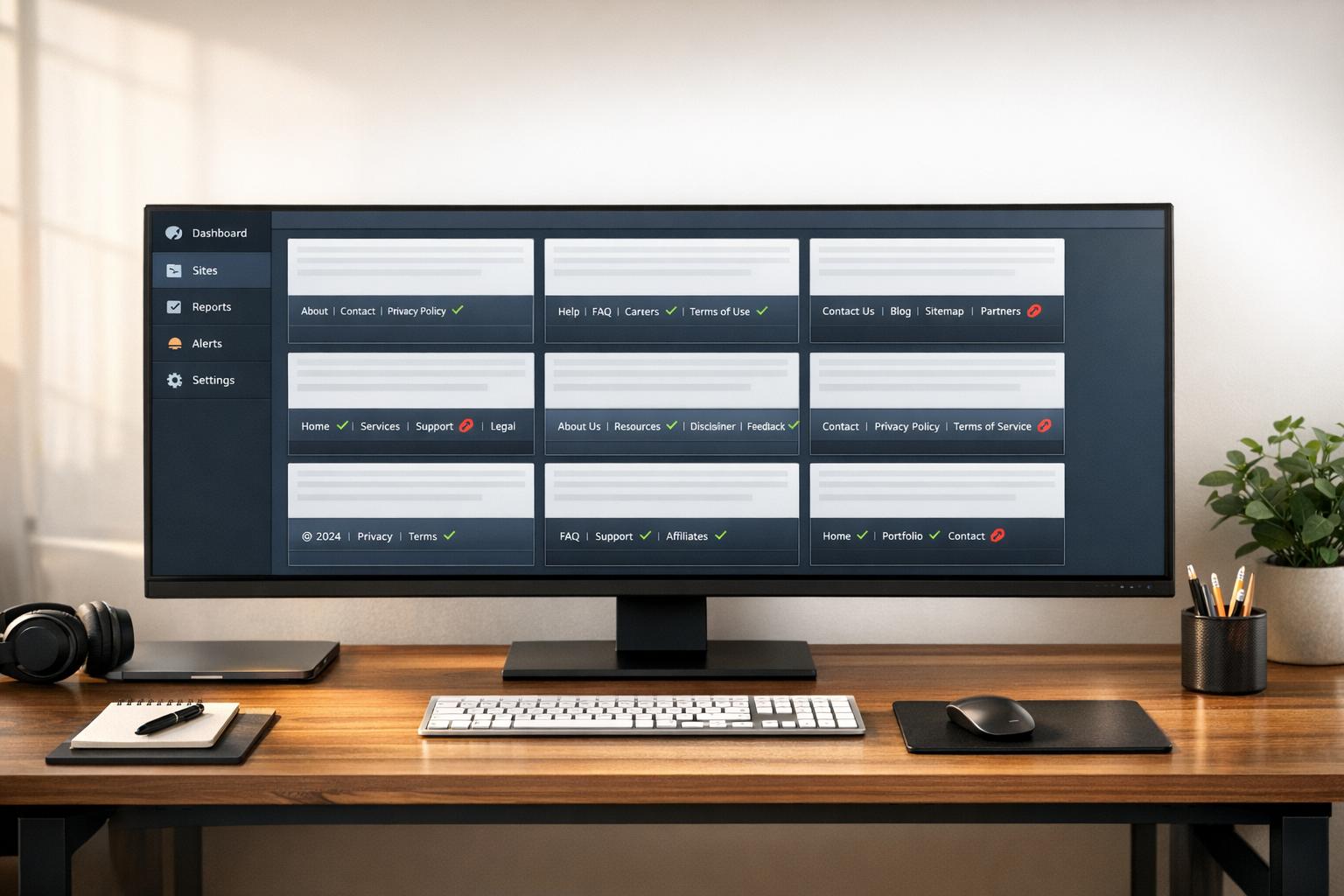
Centralize management: Use tools like 1Footer or CMS components to update footers across sites from a single dashboard.
Stay compliant: Regularly review legal links and ensure accessibility standards are met.
Audit frequently: Broken links, outdated content, and poor mobile usability can hurt user experience and SEO.
A well-managed footer ensures your brand stays strong, your users stay happy, and your sites stay compliant. Let’s dive deeper into how to make this happen.
Building a Consistent Footer Strategy
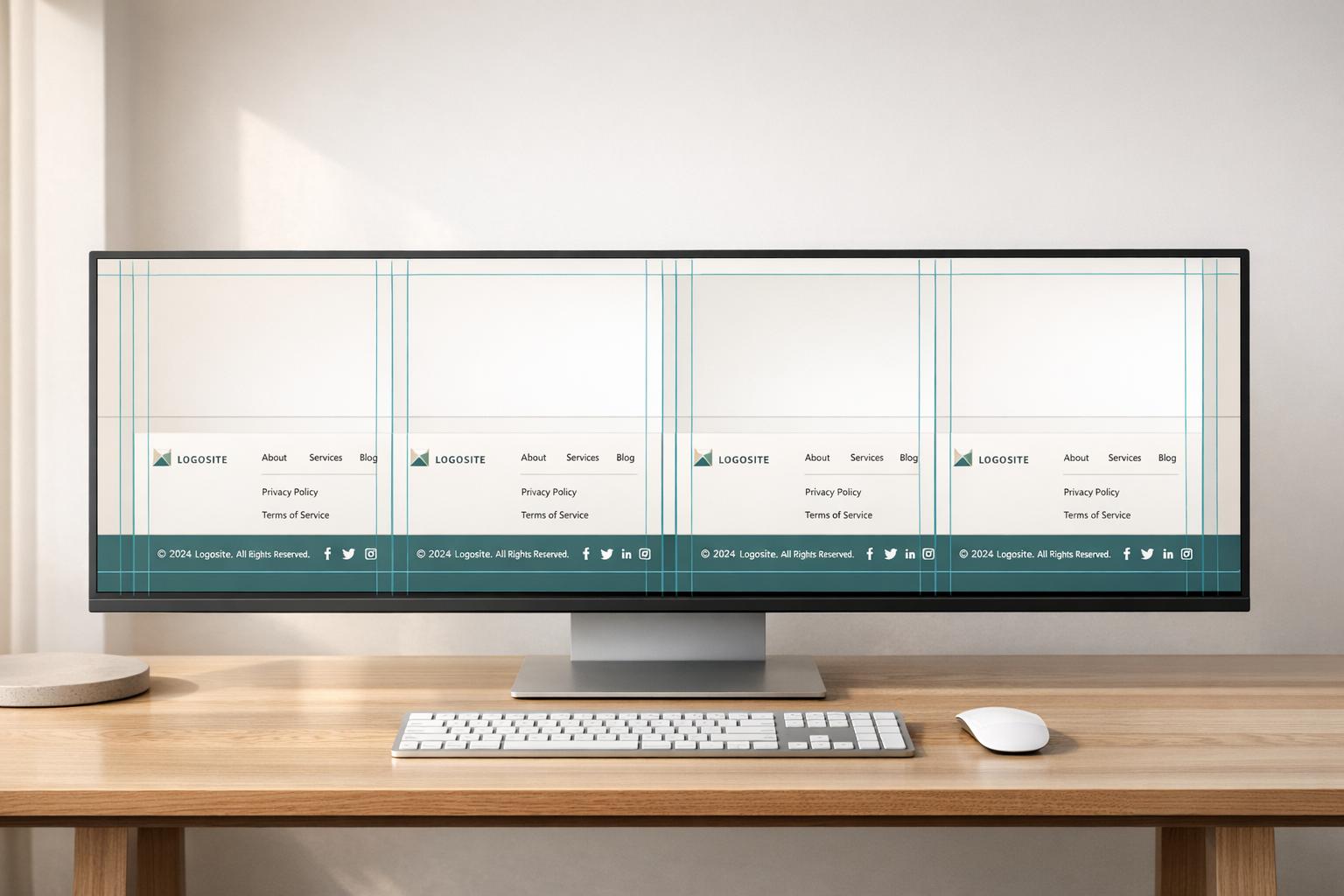
Creating a consistent footer strategy begins with one crucial decision: determining which elements remain uniform across all sites and which can be customized for local needs. Without this clarity, inconsistency can creep in, undermining the overall user experience.
Key Components of a Multi-Site Footer
A footer typically has two layers: the global standard - elements that every site in your network must include - and the local layer, which holds region-specific content. This global-local balance is critical for maintaining consistency while allowing flexibility.
Component | Global or Regional | Purpose |
|---|---|---|
Logo & Brand Colors | Global | Reinforces visual identity across the network |
Copyright Notice | Global | Ensures legal compliance on all pages |
Privacy Policy & Terms of Use | Global | |
Primary Navigation Links | Global | Provides a consistent navigation structure |
Contact Info & Address | Regional | Displays relevant local details |
Regional Legal Disclaimers | Regional | Addresses industry-specific regulations (e.g., FDA statements) |
Social Media Icons | Regional | Directs users to appropriate regional accounts |
Oscar Jite-Orimiono from LogRocket sums it up perfectly:
"The footer is like the credits at the end of a movie - it contains important information that isn't necessarily part of the main content."
This analogy highlights the footer's dual role: providing consistent "credits" across sites while accommodating regional details. For example, strategically placing social media icons ensures users interact with key content before being directed to external platforms.
Once the global structure is in place, the next step is tailoring it to address local needs.
Defining Region-Specific Exceptions
With a global framework established, it’s essential to identify and plan for local requirements. Regional exceptions shouldn’t be an afterthought - they’re an integral part of a well-thought-out footer strategy. By outlining these exceptions early, local teams can make necessary adjustments without disrupting the overall design.
One effective approach is dividing the footer into two zones: a primary zone for universal links and a mini footer for region-specific content. The primary zone might include links like "About Us", "Careers", and "Services", while the mini footer is reserved for local addresses, jurisdiction-specific disclaimers, and required notices like FDA statements or state licensing details. This ensures that critical regional information has a dedicated space without cluttering the global layout.
Using widgetized footer areas in your CMS can simplify this process. Local managers can easily add or update regional content while preserving the standardized global structure. This dual-zone approach not only enhances consistency but also streamlines management, setting the stage for centralized processes discussed in later sections.
Centralizing Footer Content Management
After mapping out your global and regional footer components, the next step is ensuring they stay organized and up to date. Without a centralized system, you’ll find yourself logging into multiple platforms, redoing edits, and possibly overlooking important updates.
Building a Content Inventory
To manage footer content effectively, you first need a clear picture of what’s included. A content inventory is essentially a catalog of all the elements in your footers - think legal links, contact details, navigation menus, social media icons, copyright notices, and trust indicators like security badges.
Organize these elements into categories for clarity:
Navigation: Links to sections like Products, Solutions, and Resources.
Support: Help Center, Documentation, and Status pages.
Legal: Privacy Policy, Terms of Use, and Cookie Policy.
Trust: Security badges, compliance certifications, and copyright notices.
This structure makes it easier to distinguish between elements that are globally consistent and those that vary by region.
Once your inventory is set, conduct quarterly audits. Check that every footer link:
Returns a 200 status code.
Points to a canonical URL.
Is included in the XML sitemap.
A crawl study from April 2026 found that 67% of websites had footer link structures that weakened internal link equity. Regular audits, guided by a well-organized inventory, can help you avoid this issue.
With a solid inventory in place, the next step is selecting tools to simplify updates across your entire network.
Using Tools for Centralized Management
Once your content inventory is documented, it’s time to choose a method for centralized updates, tailored to your tech stack and network size.
For teams managing multiple platforms (like Framer, HubSpot, or Cloudflare), tools such as 1Footer can streamline the process. This tool allows you to update footer content through a single dashboard and push those changes across all connected domains. It uses script embeds or Cloudflare Worker delivery to ensure seamless updates. For example:
YouTubeChapters saw its domain rating increase from 8 to 14 within days of implementing centralized footer management via 1Footer.
Olof Harrysson of madebyolof.com reported a jump in domain rating from 9 to 16 after synchronizing footer updates across his projects.
"The point of 1Footer is to update footer content once, then publish and verify it across connected domains." - 1Footer
For teams working within a single CMS like Webflow, global components offer an even simpler solution. As the Webflow team explains:
"With components in Webflow, you can design your footer once and reuse it across every page - no need to recreate or manually update it. Make a change to your footer component, and it updates sitewide."
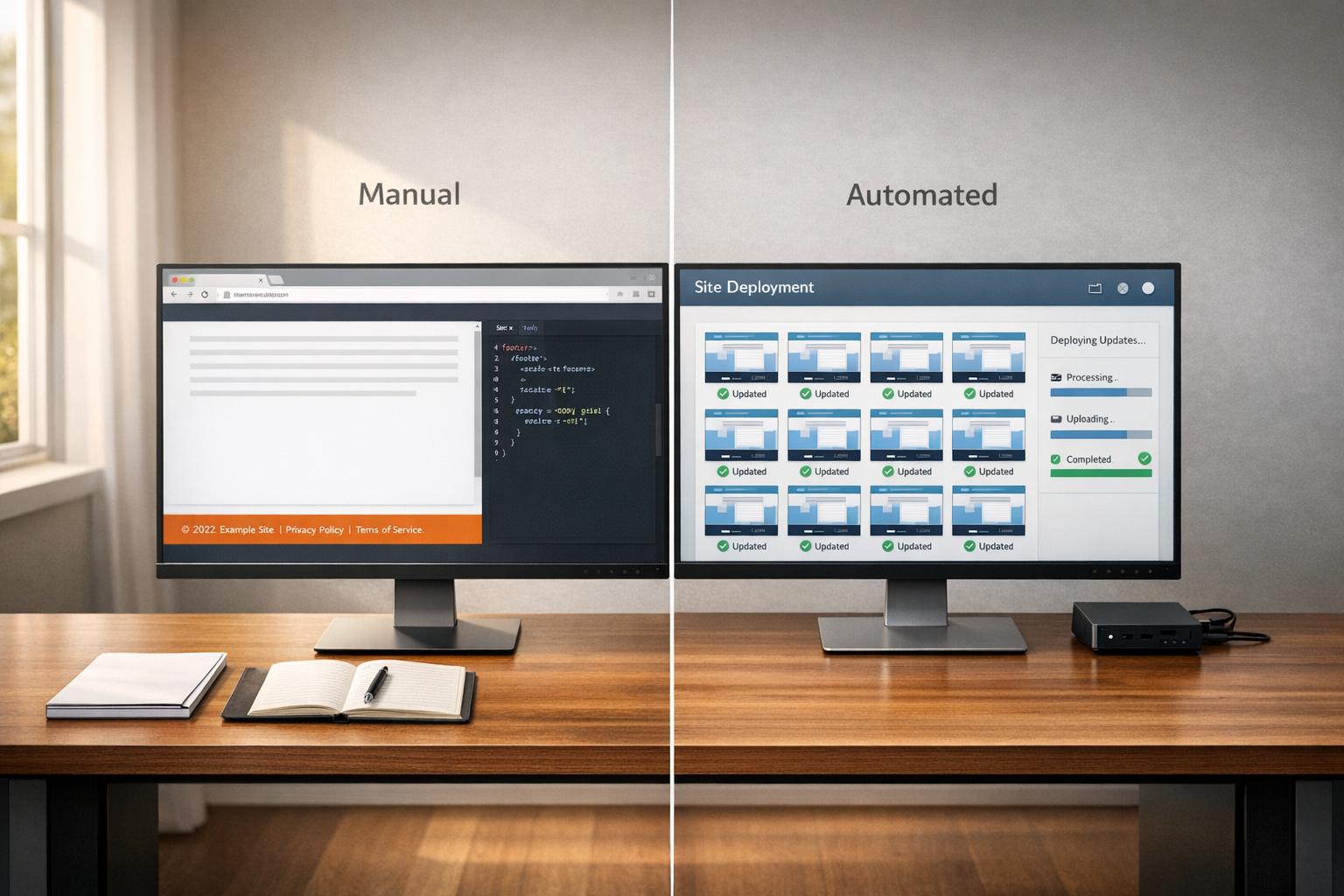
Both approaches share a major advantage: one edit updates everything. This not only saves time but also ensures footer links are rendered as crawlable HTML, allowing search engines and AI crawlers to index them across your entire network.
Managing Footer Update Workflows
Once you've centralized footer content, the next step is managing updates effectively to keep everything consistent across your sites. Without a clear plan, even minor tweaks - like updating a Privacy Policy link - can lead to errors, missed compliance, or layout problems across multiple pages.
Setting Up an Update Approval Process
A good approval process doesn't have to be overly complex. Its primary purpose is to catch potential issues before they become live problems.
Before approving any footer update, conduct a thorough pre-deployment check. This should include:
Valid URLs: Ensure every destination URL returns a 200 status code, is canonical, and lacks a noindex tag.
Legal Compliance: Check that links to Privacy Policy, Terms of Use, and Cookie Policy meet any relevant industry requirements.
Accessibility Standards: Confirm all footer elements maintain a color contrast ratio of at least 4.5:1. (Low-contrast text was found on 81% of homepages in 2024.)
Mobile Usability: Verify that all footer links meet the minimum touch target size of 44×44px for mobile users.
JavaScript Optimization: Keep the footer JavaScript payload under 50KB to avoid negatively impacting Google's Interaction to Next Paint (INP), a ranking factor since March 2024.
For larger or high-traffic networks, A/B testing changes before a full rollout can provide valuable engagement data, such as click-through and bounce rates. This approach helps validate updates with real user behavior instead of relying solely on assumptions.
After passing all approval checks, implement version control to protect against unexpected issues.
Version Control and Rollback Planning
A strong version control system is essential for quickly recovering from any errors during updates.
Automated Backups: Always create a backup before making changes. Tools like Jetpack VaultPress Backup allow for one-click site restoration, which can save the day if a footer update results in layout issues or PHP errors.
Staging Environment: Test all updates in a staging environment before pushing them live.
Child Themes for WordPress: When editing
footer.php, use a child theme to avoid losing your changes during parent theme updates. For platforms like Webflow, updates are typically managed through components, but staging tests are still critical.
If a rollback is necessary, make sure your team has a clear plan in place. Document and assign roles ahead of time to avoid confusion. For instance, define who will initiate the rollback, who will verify the restored version, and who will communicate the status to stakeholders.
Update Step | Best Practice | Tool/Method |
|---|---|---|
Drafting | Use CMS globals or components | Webflow, WordPress Site Editor |
Testing | Deploy to a staging environment and verify pre-deployment checks | Child themes, staging site |
Backup | Create an automated snapshot before deployment | Jetpack VaultPress |
Verification | Audit INP scores and crawl efficiency | Google Search Central Tools |
Rollback | Restore from backup | One-click restoration |
Footer Synchronization Methods for Multi-Site Networks
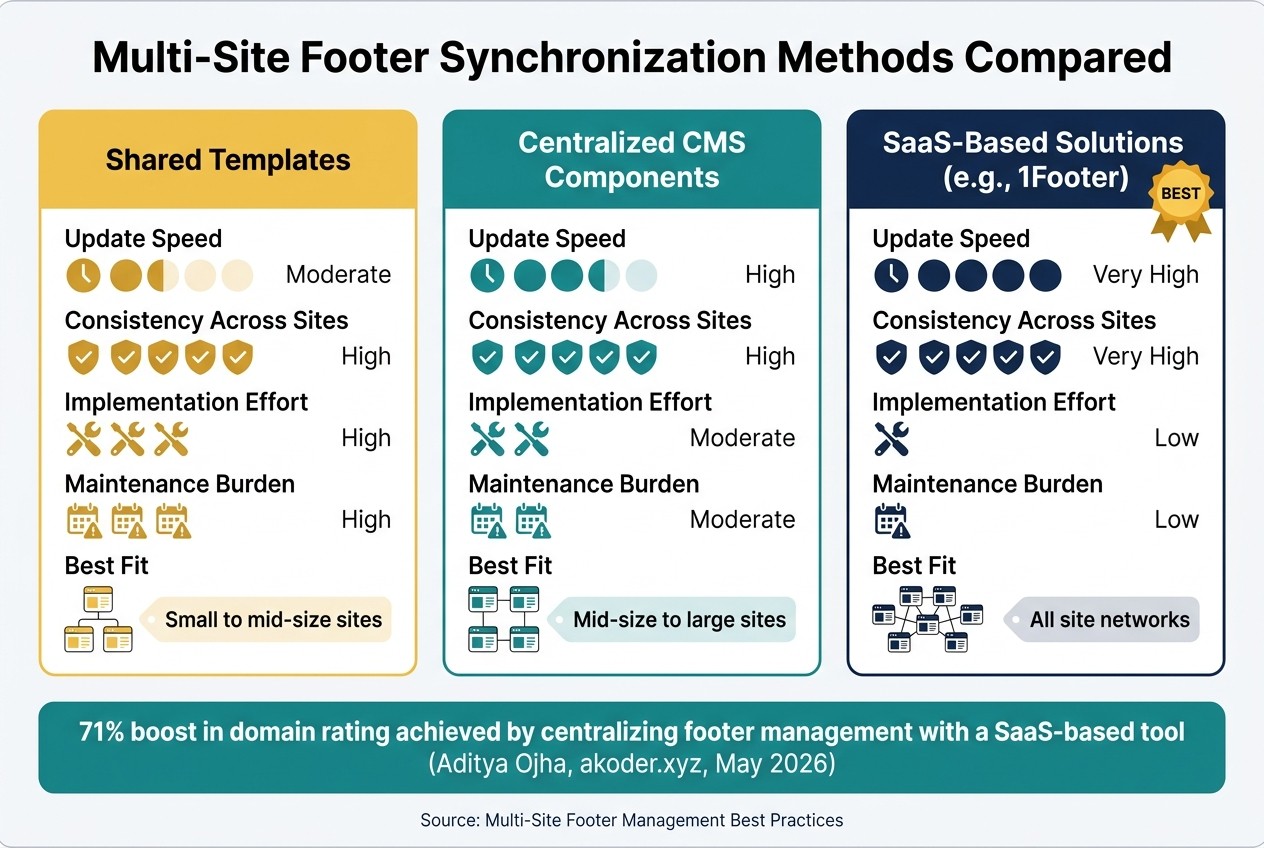
Multi-Site Footer Synchronization Methods Compared
Picking the right method to update footers across multiple sites is crucial. It affects how quickly updates roll out, how consistent they are, and how much effort is needed. Below, we’ll break down three popular methods and what they mean for your workflow.
Comparing Footer Synchronization Methods
Different networks require different approaches, and here’s how the three main methods stack up:
Shared templates work well for smaller networks. With this method, you create a footer layout - usually as part of a theme or template - and then replicate it across your sites. While this ensures consistency, the downside is clear: every time you need to update the footer, you’ll have to manually apply changes to each site. As your network grows, this approach can quickly become a time sink.
Centralized CMS components provide a more scalable solution. Platforms like WordPress Multisite allow you to use centralized components, which push updates to subsites automatically via PHP hooks and functions. This reduces manual work significantly but does require an initial setup that’s specific to the platform you’re using.
SaaS-based solutions take automation to the next level. Tools like 1Footer let you manage footer content - such as legal links, navigation menus, or badges - from a single dashboard. Once updated, changes can be pushed across all connected domains instantly. These platforms use methods like script embeds, HubSpot integrations, or Cloudflare Workers, making them compatible with any CMS. Plus, they generate crawlable HTML, ensuring search engines can index all footer links across your network.
The benefits of synchronization are tangible. For example, in May 2026, Aditya Ojha (akoder.xyz) saw a 71% boost in domain rating by centralizing footer management and ensuring link consistency across multiple sites using a SaaS-based tool.
Method | Update Speed | Consistency Across Sites | Implementation Effort | Maintenance Burden | Best Fit |
|---|---|---|---|---|---|
Shared Templates | Moderate | High | High | High | Small to mid-size sites |
Centralized CMS Components | High | High | Moderate | Moderate | Mid-size to large sites |
SaaS-Based Solutions (e.g., 1Footer) | Very High | Very High | Low | Low | All site networks |
When choosing a method, think about your network’s size and how quickly updates need to go live. For legal links or compliance updates, real-time synchronization is key. For less critical changes, scheduled batch updates might be enough.
Quality Checks and Compliance Verification
Ensuring consistent synchronization across your network hinges on meticulous quality and compliance checks. These tests play a crucial role in maintaining your network's integrity. Once footer updates are synchronized, it's essential to validate their accuracy, accessibility, and compliance with legal standards across every site in your network.
Pre-Deployment Quality Checks
Before making any footer updates live, conduct both automated and manual testing. While automated tools are helpful, they typically detect only 30–40% of WCAG 2.1 issues, such as missing alt attributes or low color contrast. The remaining 60–70% of issues, like keyboard navigation and screen reader functionality, require hands-on review.
A comprehensive pre-deployment checklist should address these areas:
Accessibility: Zoom to 200% to ensure text remains legible without cutting off or overlapping. Test keyboard navigation to confirm that every link in the footer provides a visible focus state.
Visual Contrast: Use a contrast checker to verify that text and background colors meet WCAG standards - a 4.5:1 ratio for normal text and 3:1 for larger text.
Mobile Layout: Make sure tap targets are at least 44×44 pixels, font sizes are no smaller than 16px, and long link lists collapse into accordions to prevent excessive scrolling.
Legal Links: Double-check that all required legal links and notices, such as Privacy Policies and Terms of Service, are present and functional.
Once these pre-deployment checks are complete, shift focus to verifying the updates post-deployment to ensure they’ve been applied across the entire network.
Post-Deployment Verification
After deploying updates, confirm that changes have been successfully applied across all sites, not just a select few. Use a crawl tool to extract footer links from a sample of sites and check that all links return HTTP 200 status codes. Additionally, ensure the anchor text is descriptive rather than vague phrases like "click here".
For visual confirmation, tools like BrowserStack allow you to render footers across various device types simultaneously, helping identify layout issues that might not be visible on desktop alone. For accessibility, conduct a quick screen reader test using VoiceOver (macOS/iOS) or Narrator (Windows) to confirm the reading order is logical and user-friendly.
If you manage footers through a centralized tool like 1Footer, use it to verify that updates - particularly compliance-related changes - have propagated to all connected domains, not just the primary one. Missing updates on even a single site could lead to legal risks.
Test Category | Method | Success Criteria |
|---|---|---|
Accessibility | Screen reader / Keyboard | WCAG 2.1 AA / Section 508 compliance |
Visual/UX | BrowserStack / Manual | Responsive layout; 44×44px touch targets |
SEO/Technical | Crawl tools / DevTools | HTTP 200 status; JS payload < 50KB; good INP scores |
Legal | Manual / Automated audit | Copyright, Privacy Policy, and Terms are present |
Footer Content Governance and Ownership
A well-managed footer is essential for maintaining consistency across all sites. By centralizing management and establishing clear workflows, you can ensure updates are timely and avoid issues like outdated links or compliance lapses. Defining clear ownership is the cornerstone of this process.
Defining Ownership Roles
Managing a footer effectively involves collaboration across several teams, each with distinct responsibilities:
SEO Team: Oversees the footer's link architecture, ensuring strategic placement of links.
Legal and Compliance Team: Handles mandatory elements like the Privacy Policy, Terms of Use, and any required disclaimers. This team has the final say on these components.
UX and Design: Focuses on organizing links based on user intent, ensuring logical grouping and ease of navigation.
Marketing: Manages brand-related elements, such as social media links, taglines, and newsletter sign-up prompts.
With these roles clearly defined, regular collaboration and reviews help maintain the footer's integrity.
Setting Review Schedules
Regular reviews are critical to keeping the footer accurate and functional. Here's a suggested schedule:
Review Type | Frequency | Key Focus Areas |
|---|---|---|
Link Audit | Monthly | Check for broken links, 404 errors, and redirects |
Legal Review | Quarterly | Update Privacy Policy, Terms of Service, and ensure GDPR/CCPA compliance |
SEO Audit | Quarterly | Review anchor text, crawl efficiency, and internal link equity |
Performance Check | Quarterly | Assess JavaScript payload size, Core Web Vitals (INP), and mobile rendering |
Content Review | Annually | Verify contact details, social links, and brand consistency |
In addition to routine checks, certain events - like changes in privacy laws, rebranding efforts, or new office locations - require immediate updates. Addressing these triggers promptly helps avoid compliance or branding issues.
For teams managing multiple sites, centralized tools can simplify this process by automating updates across all domains. This eliminates the need for manual changes on individual sites, saving time and reducing errors.
Conclusion: Key Takeaways for Multi-Site Footer Management
Managing footers across multiple sites goes far beyond just design - it directly affects SEO, legal compliance, brand consistency, and user experience. A centralized system can simplify this process significantly. By addressing SEO, legal, branding, and user experience needs together, your footer transforms into a powerful tool that benefits your entire network.
The main point here? Centralization is key. When footer updates are controlled from a single source, you avoid issues like outdated legal links, inconsistent branding, and compliance oversights. Regular audits further ensure that this approach maintains internal link equity and keeps everything running smoothly.
Beyond centralization, governance plays a major role. Assigning clear ownership roles, sticking to quarterly review cycles, and following a standardized approval process help keep your footer accurate and functional - not just when it launches, but consistently over time.
"Your footer is the only section of your website that appears on every single page - which means every link inside it carries sitewide weight in Google's crawl graph." - Jordan Mercer, Senior SEO Strategist
For teams managing multiple domains, tools like 1Footer simplify the process. With an "edit once, publish everywhere" capability, these tools ensure that legal links, navigation, and branding stay aligned across all sites, eliminating the need for manual updates.
FAQs
How do I decide what belongs in the global footer vs the local footer?
The global footer is a constant feature across all pages, housing key elements like copyright information, legal disclaimers, branding, and primary navigation links. Its purpose? To maintain a consistent look and feel throughout the site.
On the other hand, local footers are page-specific. They might include details such as physical addresses, breadcrumbs, or links tailored to the content of that particular page. Think of the global footer as the go-to for universal content, while local footers handle more targeted, page-relevant details.
What’s the safest way to roll out footer changes across many sites without breaking anything?
To implement footer changes across multiple sites without hassle, centralize and automate the process. A CMS with shared footer settings or a specialized tool can help maintain uniformity. Before going live, test updates in a staging environment to catch any issues. Roll out changes gradually, keeping an eye out for problems. Always back up the current footers so you can revert if something goes wrong, and double-check functionality on all sites once the update is deployed.
How can I confirm my footer updates are SEO-friendly and accessible after deployment?
To make your footer updates both SEO-friendly and accessible, focus on adding links that users find helpful, such as privacy policies, contact pages, and similar resources. Avoid cramming in too many keywords or overloading it with links, as this can hurt usability and search rankings.
Ensure all links are mobile-friendly, well-organized, and easy for search engines to crawl. Tools can help you analyze how well your links are performing. For accessibility, test features like contrast ratios, screen reader compatibility, and ensure anchor text clearly describes the linked content. By following these steps, your footer can improve both usability and SEO performance.