
HTML Footer Optimization: Lightweight Code Explained
Your footer is on every page of your site. If it’s bloated or poorly coded, it can slow down your entire website. Here's what you need to know about creating a lightweight, fast, and user-friendly footer:
Why it matters: A footer affects site performance, accessibility, and SEO. Issues like bloated code, unnecessary scripts, and excessive links can hurt load times and user experience.
Key fixes: Use semantic HTML (
<footer>,<nav>,<ul>), reduce DOM depth, and avoid redundant CSS. Optimize scripts withdeferand lazy-load assets like images.Performance impact: A well-optimized footer improves Core Web Vitals like Interaction to Next Paint (INP) and Cumulative Layout Shift (CLS).
Multi-site management: Tools like 1Footer help maintain consistent, crawlable footers across multiple websites, ensuring compliance and SEO benefits.
The BEST Way to Build a Footer! [HTML,CSS]
How the HTML Footer Affects Web Performance
The footer may sit at the bottom of the page, but its impact extends across your entire site. Any performance issues in the footer ripple through every page, making it a critical area to optimize.
What the Semantic Footer Element Does
The HTML <footer> element serves as a semantic landmark, signaling to browsers, screen readers, and search engines that this section contains concluding or supplementary information. Commonly, it houses copyright notices, legal disclaimers, contact details, or secondary navigation links.
Using <footer> instead of a generic <div> comes with distinct advantages. For one, it inherently carries an ARIA role of contentinfo, which helps screen readers allow users to navigate directly to the footer. However, for older Safari versions (pre-13), adding role="contentinfo" manually ensures VoiceOver interprets it correctly.
From an SEO perspective, the <footer> element helps search engines better understand your page's structure. Since the footer appears on every page, links within it carry sitewide weight in Google's crawl graph. This makes semantic accuracy in the footer critical for both accessibility and SEO.
Semantic precision also impacts how quickly browsers process the footer, laying the groundwork for its broader role in rendering efficiency.
How Footer Placement Affects Page Rendering
Browsers parse HTML sequentially, meaning they can start rendering the top of the page before the footer is fully processed. While this might make the footer seem less important, the reality is more nuanced.
A bloated footer consumes bandwidth and processing resources, slowing down above-the-fold rendering. If the footer's code is part of the first 14 KB of the HTML response - the size of the initial TCP slow-start window - any inefficiencies here directly delay the first paint.
The footer also affects Interaction to Next Paint (INP), a Core Web Vitals metric that measures how quickly a browser responds to user input. Large DOM trees, often caused by footer bloat, slow down style and layout calculations, hurting INP scores across the entire site.
"The reason [to use defer in the head] comes down to the preload scanner: your browser discovers head scripts immediately and starts downloading them in parallel with HTML parsing. Footer scripts are discovered later, which means a later download start." - Arjen Karel, Web Performance Consultant
Common Causes of Footer Code Bloat
Performance issues in the footer often stem from third-party scripts like chat widgets, social media embeds, or analytics tools that block the main thread. Google's Chrome team highlighted in April 2026 that large DOM trees in footer-heavy pages are a significant factor behind poor INP scores.
Other common culprits include oversized icon libraries used for just a few social icons, deeply nested <div> structures that inflate the DOM, and redundant CSS duplicating existing styles. As of April 2026, audits revealed that 67% of sites had footer designs that diluted internal link equity, often due to excessive low-priority links that waste crawl budget.
To mitigate these issues, aim to keep your footer's JavaScript payload under 50 KB. This small adjustment can significantly improve INP performance across every page on your site.
How to Write Lightweight HTML for Footers
Crafting clean, efficient HTML for your footer is more than just a technical exercise - it directly impacts your site's speed and usability. The way you structure your tags, manage nesting, and organize content can make a noticeable difference in performance.
Using Semantic Tags and Logical Content Structure
Start with the <footer> tag, but don’t stop there. Use semantic elements like <nav>, <ul>, and <address> to define content roles clearly. This approach doesn’t just improve readability for developers - it also helps search engines and assistive technologies understand your page better. Avoid defaulting to <div> tags, as they lack the clarity of semantic elements.
"A footer is the place users go when they're lost. If we want to leave a lasting good impression, it's critical that we don't neglect the bottom of the page." - Therese Fessenden, Senior UX Specialist, NN/g
Reducing DOM Depth and Grouping Footer Content
Simplifying your DOM structure is another key step. Skip excessive nesting of <div> elements. Instead, group related links under clear headings using <ul> lists, and rely on CSS Grid or Flexbox for layout. Keep the hierarchy simple - no more than two levels of depth - to avoid cluttering the footer with low-priority links.
"A bloated footer indicates overcomplicated information architecture, while a thoughtful one demonstrates restraint and user understanding." - DigitalThriveAI
Accessibility and Text-First Footer Design
Lightweight HTML and accessibility go hand in hand. Use text-based designs rather than icon-heavy libraries to improve both performance and usability. Descriptive link text is more accessible and lighter than relying heavily on icons. For icons you do use, opt for inline SVGs instead of external images to reduce HTTP requests.
If your footer includes multiple <nav> blocks, add distinct aria-label attributes to help screen readers navigate the content. And don’t forget touch targets - ensure they’re at least 44×44 pixels to accommodate mobile users, who now account for about half of all web traffic.
CSS Practices for Efficient, Responsive Footers
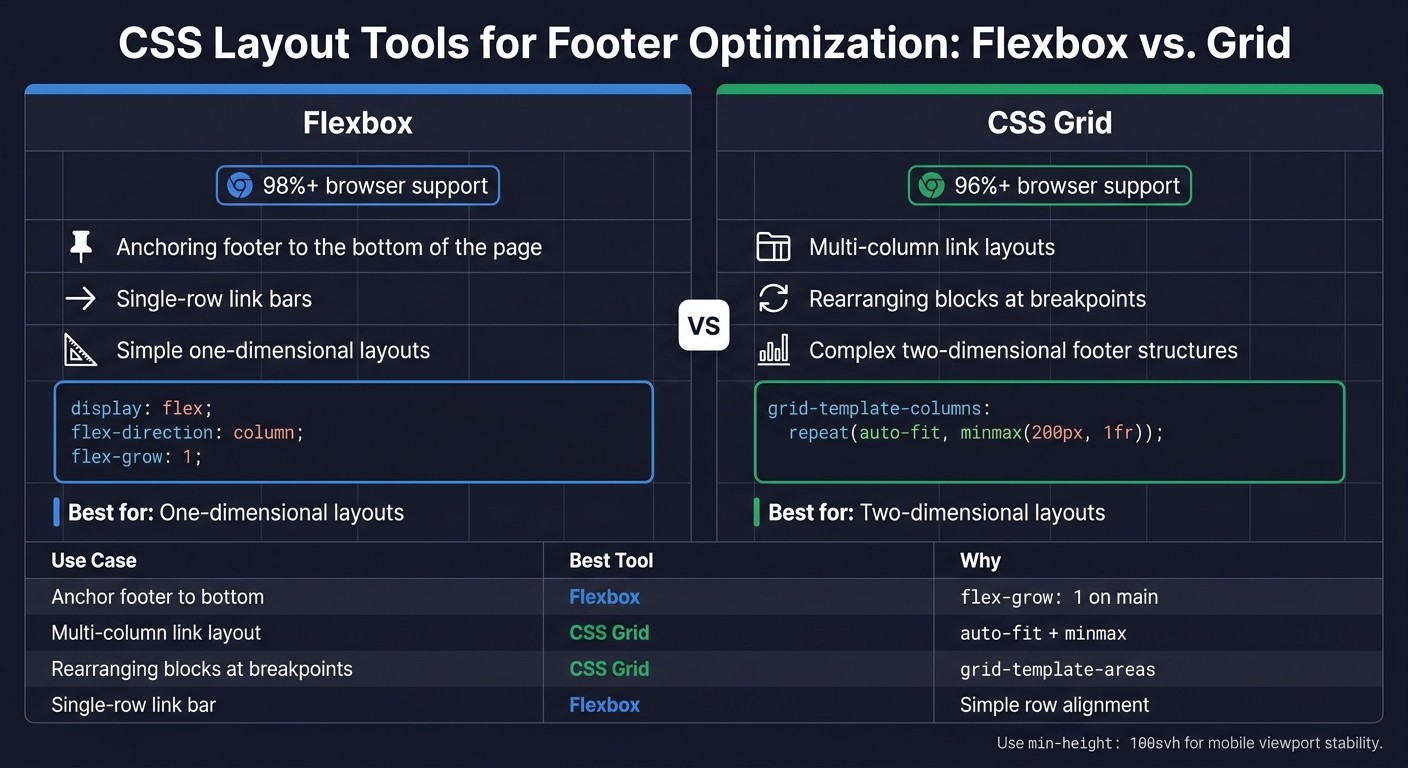
CSS Layout Tools for Footer Optimization: Flexbox vs. Grid
Once your HTML structure is solid, fine-tuning your CSS is the next step in creating a lightweight and responsive footer.
Using CSS Grid and Flexbox for Footer Layouts
CSS Grid and Flexbox are versatile tools that cover almost any footer layout requirement. Flexbox enjoys over 98% browser support, while CSS Grid is supported by over 96% of browsers.
Flexbox is ideal for anchoring the footer to the bottom of a page with minimal content. Add
display: flexandflex-direction: columnto your page wrapper, and useflex-grow: 1on the<main>element. This ensures the footer stays at the bottom without relying on JavaScript or awkward positioning tricks.For internal footer layouts, such as columns of links or a legal disclaimer row, CSS Grid is more effective. A declaration like
grid-template-columns: repeat(auto-fit, minmax(200px, 1fr))automatically adjusts columns to fit the screen size, often eliminating the need for multiple media queries. When you need to rearrange elements at different breakpoints - like moving a newsletter signup to a full-width row -grid-template-areasallows you to make these adjustments with just a few CSS changes, leaving your HTML untouched.
Use Case | Best Tool |
|---|---|
Anchoring the footer to the bottom | Flexbox ( |
Multi-column link layout | CSS Grid ( |
Rearranging blocks at breakpoints | CSS Grid ( |
Single-row link bar | Flexbox |
For mobile devices, use min-height: 100svh instead of 100vh for your wrapper. The svh unit accounts for dynamic resizing caused by mobile browser address bars, preventing the footer from appearing to float awkwardly.
Once your layout is set with Grid and Flexbox, the next step is trimming unnecessary CSS.
Reducing CSS File Size and Removing Redundancy
Bloated CSS can weigh down your site. Start by defining reusable CSS custom properties (e.g., --footer-gap, --footer-bg) for consistent spacing, colors, and other styles. This eliminates the need to repeatedly update hardcoded values across your stylesheet.
Take advantage of semantic HTML elements like <footer>, <nav>, and <ul> to simplify your selectors. Short, specific selectors not only reduce your file size but also improve browser performance by speeding up style matching.
Another performance trick is applying content-visibility: auto and contain: content to your footer. This prompts the browser to delay rendering the footer until it scrolls into view, which can drastically improve load times on longer pages.
Delivering Footer Styles Without Blocking Rendering
Optimizing CSS delivery is just as important as keeping it lean. If your footer styles are part of a large, site-wide stylesheet loaded in the <head>, they can slow down rendering for the entire page. Browsers must parse the entire stylesheet before displaying anything, even content users see first.
To fix this, separate critical above-the-fold styles from non-critical ones. Inline only the CSS needed for the initial viewport in the <head>, and defer footer styles using media attributes or asynchronous loading methods.
"Footer-heavy pages with large DOM trees can negatively impact Interaction to Next Paint (INP) scores - a ranking factor since March 2024." - Chrome Team Technical Guidance
Keeping your footer CSS lean also boosts Core Web Vitals. Large stylesheets tied to footer components - especially those loading external fonts or icons - can increase the main thread workload. If you've switched to inline SVGs for icons (as discussed earlier), you've already eliminated a common issue. Pair this with minified and deduplicated CSS to ensure your footer doesn't drag down performance.
Handling Scripts and Assets in the Footer
Using Deferred and Conditional Script Loading
It’s no longer ideal to place scripts at the bottom of the <body> tag. Modern best practices recommend keeping scripts in the <head> with the defer attribute. This approach allows scripts to download in parallel while ensuring they execute in the correct order after the HTML has been fully parsed. When scripts are placed at the bottom, they delay the discovery and parallel downloading of other resources.
"Footer placement was the workaround before defer had universal browser support. That era is over."
Using defer ensures scripts that interact with the DOM run safely after parsing is complete. On the other hand, async should only be used for scripts that don’t depend on the DOM or other scripts.
For optional features like chat widgets, social sharing buttons, or feedback tools, load them after the page becomes interactive. This ensures they don’t interfere with the initial user experience. The benefits are measurable: shifting non-critical scripts to deferred loading can improve First Contentful Paint by an average of 340ms.
In addition to scripts, optimizing footer assets like images and icons can further enhance performance.
Optimizing Footer Images and Icons
When it comes to footer images, use attributes like loading="lazy" and fetchpriority="low" to prevent them from competing with critical elements like those affecting Largest Contentful Paint (LCP). For larger images, add decoding="async" to offload decoding to a background thread.
Here’s an example of how to optimize a standard footer logo:
<img src="logo.webp" loading="lazy" fetchpriority="low" decoding="async" width="120" height="60" alt="Company Logo">Always include explicit width and height attributes. These help browsers reserve the necessary space for the image, avoiding layout shifts that can negatively impact your Cumulative Layout Shift (CLS) score. For icons, inline SVGs are the leanest choice - they eliminate extra HTTP requests and avoid render-blocking font files. If you need to use photographic images in the footer, AVIF is currently the most efficient format, offering up to 50% smaller file sizes compared to JPEG. WebP is another solid option, with file sizes about 30% smaller than JPEG.
While individual optimizations make a difference, managing scripts and assets centrally can help maintain consistent performance across all your sites.
Centralized Script Management Across Multiple Sites
Centralized management of footer scripts and assets can simplify updates and ensure consistency across a brand’s web presence. When managing multiple sites, inconsistencies can arise - different versions of analytics, outdated chat configurations, or duplicate third-party embeds can quietly degrade performance.
1Footer is a tool designed to address this issue. It allows teams to manage shared footer content - such as legal links, product mentions, badges, and scripts - from a single dashboard, pushing updates to all connected domains simultaneously. Unlike JavaScript-rendered fragments, it delivers crawlable HTML, ensuring search engines and AI crawlers can reliably index the footer content.
This approach also helps enforce performance rules. For example, maintaining a strict script payload limit (e.g., under 50KB) becomes much easier when one team oversees all footer code. Without centralized control, inconsistencies in footer scripts can lead to variations in Core Web Vitals across a brand’s sites. Centralized management is a straightforward way to address this challenge and maintain a tighter performance budget.
Centralized Footer Management for Multi-Site Teams
Managing multiple websites comes with its own set of challenges, especially when it comes to maintaining consistent footers. Centralized footer management can significantly improve both compliance and website performance.
The Challenges of Managing Footers Across Multiple Sites
When you're managing several websites, the footer is never a "set-it-and-forget-it" element. Every update - whether it's a new Privacy Policy, a product name change, or a revised Terms of Service - needs to be applied manually across all sites. Missing even one update can lead to compliance issues.
This issue is often referred to as version drift. It's what happens when different websites in your portfolio gradually go out of sync. For example, some sites might still link to outdated Terms of Service pages or display an old copyright year. Version drift is a natural result of inconsistent updates and piecemeal management, and its impact grows as the number of sites increases.
For teams in the U.S., this is more than just an operational headache - it’s a compliance risk. Privacy laws require that links to documents like Privacy Policies, Cookie Preferences, and Terms of Use are accurate and consistently displayed across all your websites.
Why a Unified Footer Structure Saves Time and Effort
A unified footer system eliminates the headaches of version drift by allowing updates to be applied across all your sites simultaneously. This approach not only simplifies operations but also brings SEO advantages.
From an SEO perspective, consistent footer links can make a big difference. Websites with well-structured, sitewide footer links experience an average 3.2x increase in crawl frequency. Additionally, optimizing footer links has been shown to improve rankings for target pages by an average of 18%. By keeping footer links uniform and properly structured, you avoid diluting internal link equity and ensure search engines can effectively crawl your sites.
"Internal links are one of the most powerful tools you have for communicating page importance to Google - and the footer is the highest-leverage placement on your entire site." - Jordan Mercer, Senior SEO Strategist
A unified footer also helps maintain performance standards. When a single team controls the template, it’s easier to keep the footer's JavaScript payload under 50KB. This avoids the performance issues that arise when individual sites add their own scripts and embeds. In short, a centralized approach ensures updates are easier to manage while keeping your sites lightweight and efficient.
How 1Footer Supports Multi-Site Footer Synchronization
1Footer is designed to simplify footer management for multi-site teams. It allows you to define a footer once and deploy it across multiple websites, covering everything from legal links to navigation, badges, and metadata.
Unlike iframe or client-side JavaScript solutions, 1Footer delivers footer content as domain-native, crawlable HTML. This is a key advantage because iframe-based embeds are often invisible to search engine crawlers, meaning the internal links within them don’t contribute to your SEO architecture. With crawlable HTML, your footer links are fully accessible to both traditional search engines and AI-driven crawlers.
"1Footer manages shared footer content across multiple websites, including legal links, product links, project references, badges, and footer metadata." - 1Footer
For teams managing several domains - whether they’re built on Framer, HubSpot, or custom platforms - 1Footer replaces the tedious, manual update process with a centralized system. This ensures legal links are always up-to-date, branding stays consistent, and performance remains reliable across your entire portfolio.
Conclusion: Key Takeaways for Lightweight Footer Optimization
Optimizing a lightweight footer isn't just about aesthetics - it's about improving page load times, helping search engines crawl effectively, and staying compliant with privacy regulations. Every tweak to your footer impacts both user experience and SEO. By focusing on semantic HTML, streamlined CSS, and efficient script loading, you can achieve these benefits seamlessly.
The backbone of this approach lies in semantic HTML. Using the <footer> element not only makes your code cleaner but also helps search engines and screen readers understand your page structure. This eliminates the need for manual ARIA workarounds. A shallow DOM and well-organized content grouping further reduce unnecessary complexity.
When it comes to CSS, tools like Flexbox and Grid allow you to create responsive layouts without adding extra markup. Keeping your styles minimal, deferring non-essential scripts, integrating inline SVGs, and lazy-loading widgets all contribute to better Core Web Vitals performance, such as CLS (Cumulative Layout Shift) and INP (Interaction to Next Paint). These strategies are especially valuable for managing multiple sites efficiently.
For teams managing multiple domains, a unified footer ensures consistency across all sites. This prevents version mismatches, maintains accurate legal links, and provides uniform navigation. Platforms like 1Footer simplify this process by centralizing footer management.
"Your footer appears on every page across your existing projects. So even small footer improvements compound into consistent discovery for new launches." - Daniel Sinewe, 1Footer
1Footer exemplifies how centralized tools can deliver crawlable, domain-specific HTML to multiple sites with a single update. This eliminates the need for iframes or manual redeployment, ensuring efficiency and consistency across your web presence.
FAQs
What should my footer’s size budget be?
Keeping your footer simple and efficient is key to enhancing performance and user experience. Stick to 4–6 columns, each containing 3–5 links, for a total of 15–25 links. If you need to include 40–50 links or more, consider using collapsible sections or creating a dedicated sitemap page to avoid clutter.
For teams managing multiple websites, tools like 1Footer can help maintain a consistent, clean design while ensuring the HTML remains crawlable for search engines. This approach strikes a balance between usability and effective site management.
How do I choose between defer and async for footer scripts?
When deciding between defer and async, it comes down to how your script behaves:
Choose defer if your script interacts with the DOM, relies on other scripts, or needs to maintain a specific execution order. This ensures scripts execute in the order they appear, but only after the HTML document has been fully parsed.
Use async for scripts that work independently, such as analytics or tracking pixels. These scripts don’t rely on the DOM or other scripts and can execute as soon as they’re downloaded.
For improved performance, placing deferred scripts in the <head> can help the preload scanner discover them earlier.
How can I keep one crawlable footer consistent across many sites?
Managing footers across multiple websites can be a hassle, but 1Footer makes it simple. With this tool, you can define your footer content through a single dashboard and publish it seamlessly across all your connected domains. The best part? The footer is delivered as domain-native, crawlable HTML, not as restricted iframes. This means search engines can easily discover and index your links.
By centralizing your footer management, you can streamline updates, ensure consistent branding, and synchronize changes effortlessly across all your sites.